Marketplace & Portfolio
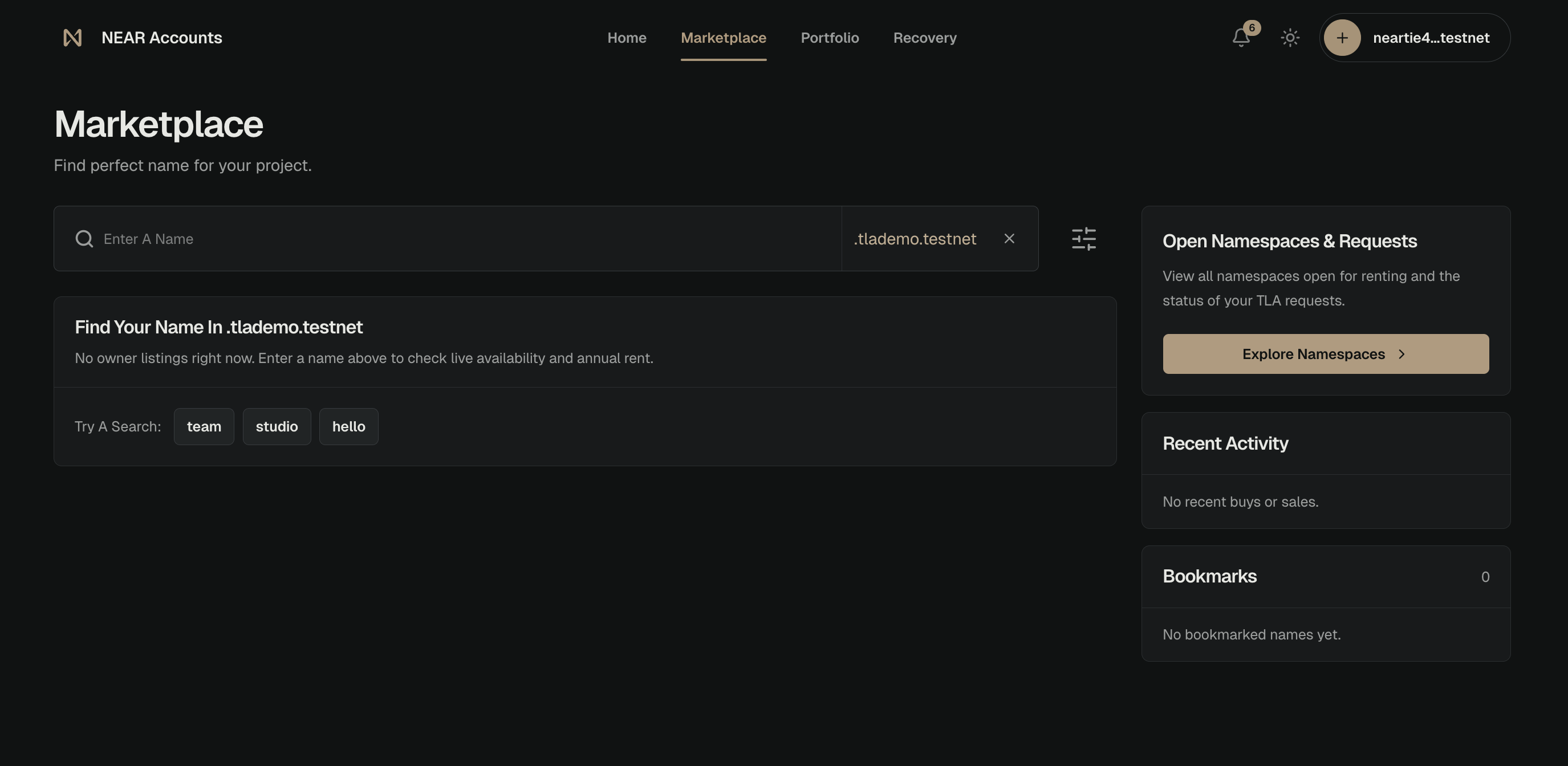
The Marketplace is where you find accounts to rent or buy. Your Portfolio is where you manage accounts you already control.
Marketplace
Use the Marketplace to:
- Find and rent an available sub-account.
- Browse open Top Level Accounts, or TLAs.
- Request that the House of Stake open a new TLA.
- Find and buy rented accounts that other owners listed for sale.
Follow Get Started to rent an available name. Follow Opening New TLAs to find or request a public TLA.
Buy a Listed Account
- Sign in. Use the NEAR account that should become the new ownership account.
- Open the listing. Check the full account name, price, rental end date, and account information.
- Pay with NEAR. For now, marketplace purchases only support payments in NEAR.
- Approve the purchase. Wait for both the payment and ownership transfer to finish.
- Check your Portfolio. The rented account should now appear under your ownership account.
Marketplace sales use NEAR Intents to exchange payment and ownership together. The buyer receives the rented account only when the payment succeeds.
NEAR Accounts does not charge a resale commission. Other services used for payment may charge their own fees.
After the sale, the buyer controls the rented account and becomes responsible for renewals. The seller can no longer use it.
Portfolio
Portfolio shows your ownership account and rented accounts. Select a rented account to manage its settings.
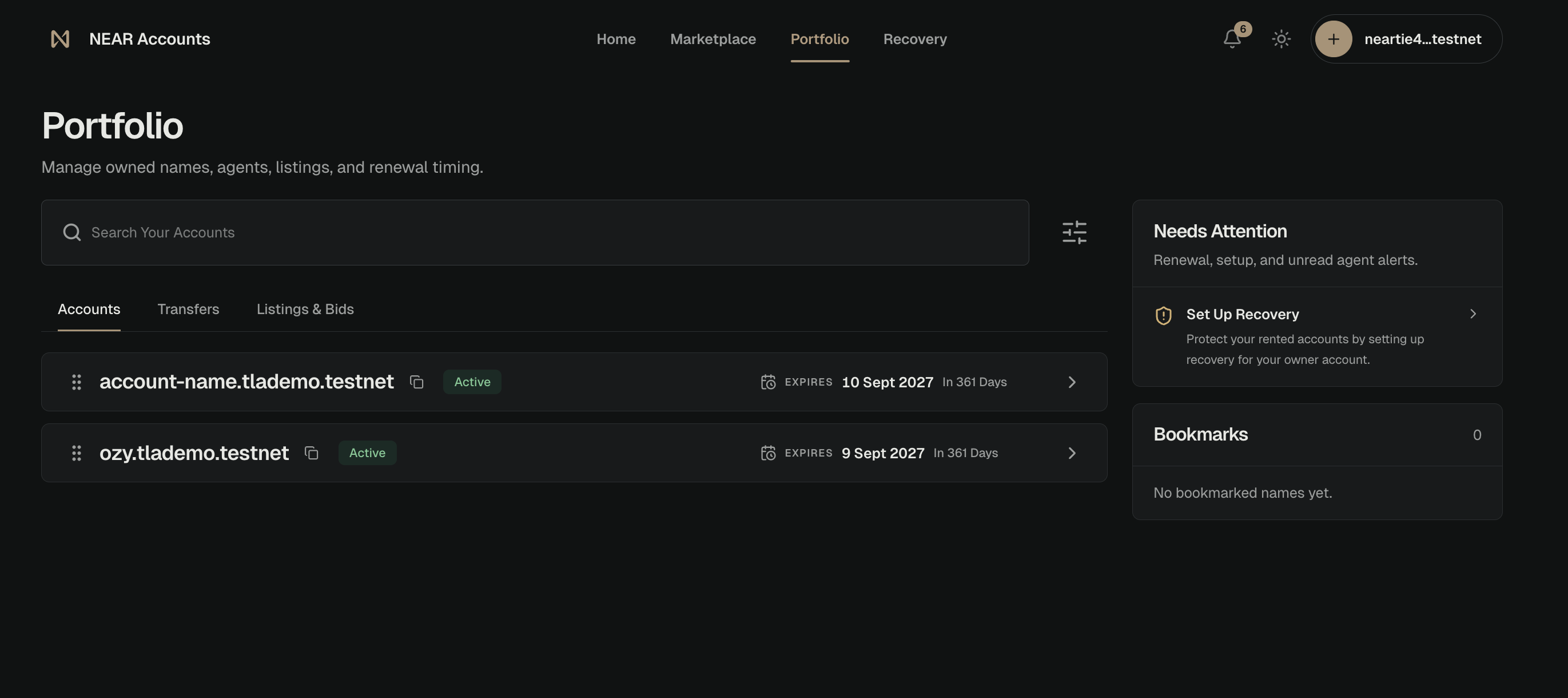
From a rented account's settings, you can:
- Review its rental period and renewal date.
- Manage the account and its assets.
- List it for sale.
- Transfer it directly to another person.
Your ownership account controls the rented accounts in Portfolio. Selling or transferring one rented account does not change your ownership account or your other rented accounts. Read Accounts & Ownership for more detail.
List a Rented Account
- Open the rented account. Sign in, open Portfolio, and select the name you want to list.
- Create the listing. Listing creates a signed market order. The name and its balances stay unchanged.
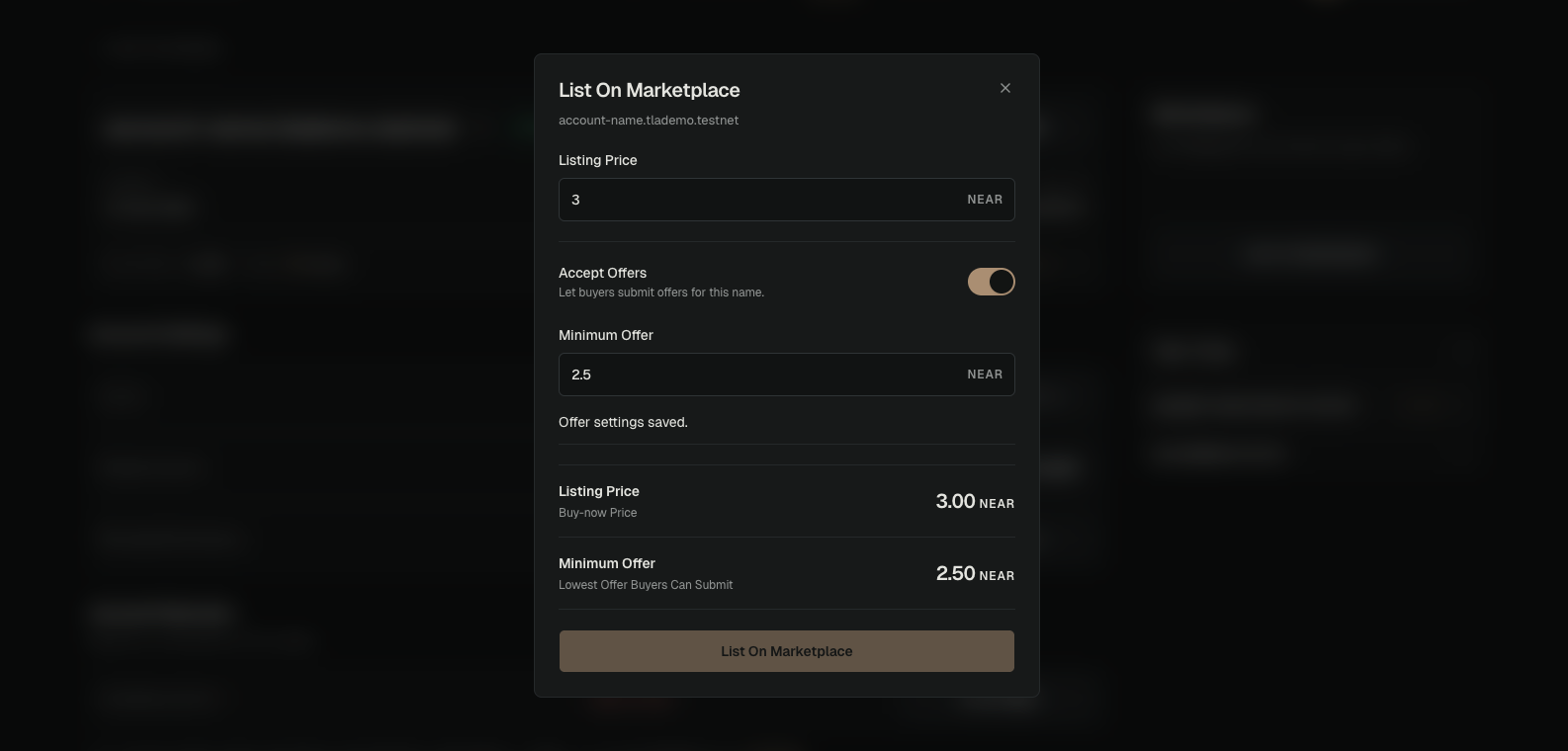
- Set the price. Open the rented account's Marketplace settings and choose List On Marketplace. Enter a buy-now price and, if you want, allow lower offers.
- Review and approve. Check the account name and price before you list it. Listing does not move the account's balances.
What Happens When Your Account Is Listed
- You still own and control the rented account until a sale is completed.
- The listing does not pause or extend the lease. The existing renewal date stays the same.
- You can change the price or remove the listing from the rented account's Marketplace settings in Portfolio.
- A buyer can pay the listed price. If offers are enabled, buyers can also offer a lower price. An offer does not transfer the account by itself; you must accept and complete the sale.
Removing a listing removes the buy-now price. It does not automatically remove your offer settings or offers you already received.
What Happens When Someone Buys Your Account
- The sale completes only after the buyer's payment and the ownership change are complete.
- During the sale, the name may be held temporarily while payment and ownership finish. Your payout account stays recorded, and listing the account does not sweep its balances.
- When the sale completes, supported NEAR and regular token balances (tokens that can be exchanged one-for-one) are sent to your saved payout account before the buyer takes control.
- NFTs and assets held through other contracts are not automatically swept. Handle those separately before the sale.
- The buyer becomes responsible for renewals. You can no longer use or control the rented account.
- The ownership change may finish in several NEAR steps rather than one instant update.
Transfer Ownership of an Account
Use a direct transfer to give ownership of a rented account to another NEAR account. You do not need to list it for sale.
- Open the account. Select the rented account from Portfolio.
- Start the transfer. Choose Transfer Ownership from the rented account's settings.
- Enter the recipient. Use the recipient's existing NEAR account. It will become the new ownership account.
- Approve the transfer. Check the account name carefully before you continue.
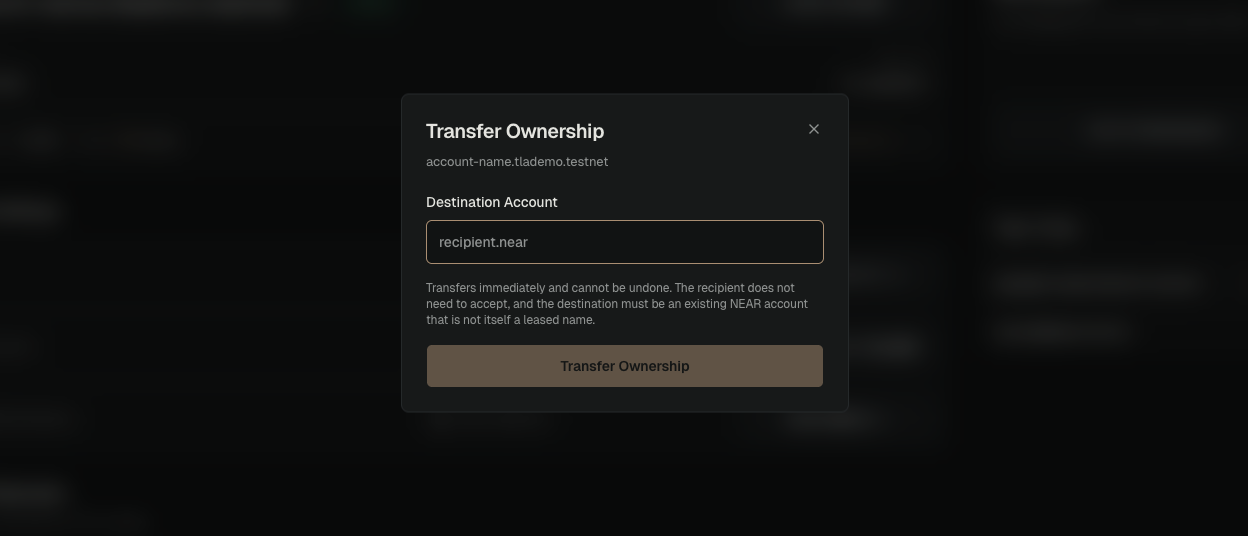
A direct transfer cannot be undone. The recipient must be an existing NEAR account, not another rented account. When the transfer completes, supported NEAR and regular token balances (tokens that can be exchanged one-for-one) are sent to the outgoing owner's saved payout account before the recipient takes control. NFTs and assets held through other contracts are not automatically swept.
What Happens to Recovery After a Transfer
Recovery belongs to the ownership account. It does not travel with an individual rented account.
When a rented account changes owners:
- NEAR Accounts clears the seller's recovery information from the transferred account.
- The seller's recovery stays active for their ownership account and their other rented accounts.
- The seller can no longer recover or control the transferred account.
- The buyer's recovery protects the transferred account if recovery is active on the buyer's ownership account.